About Work Schedule
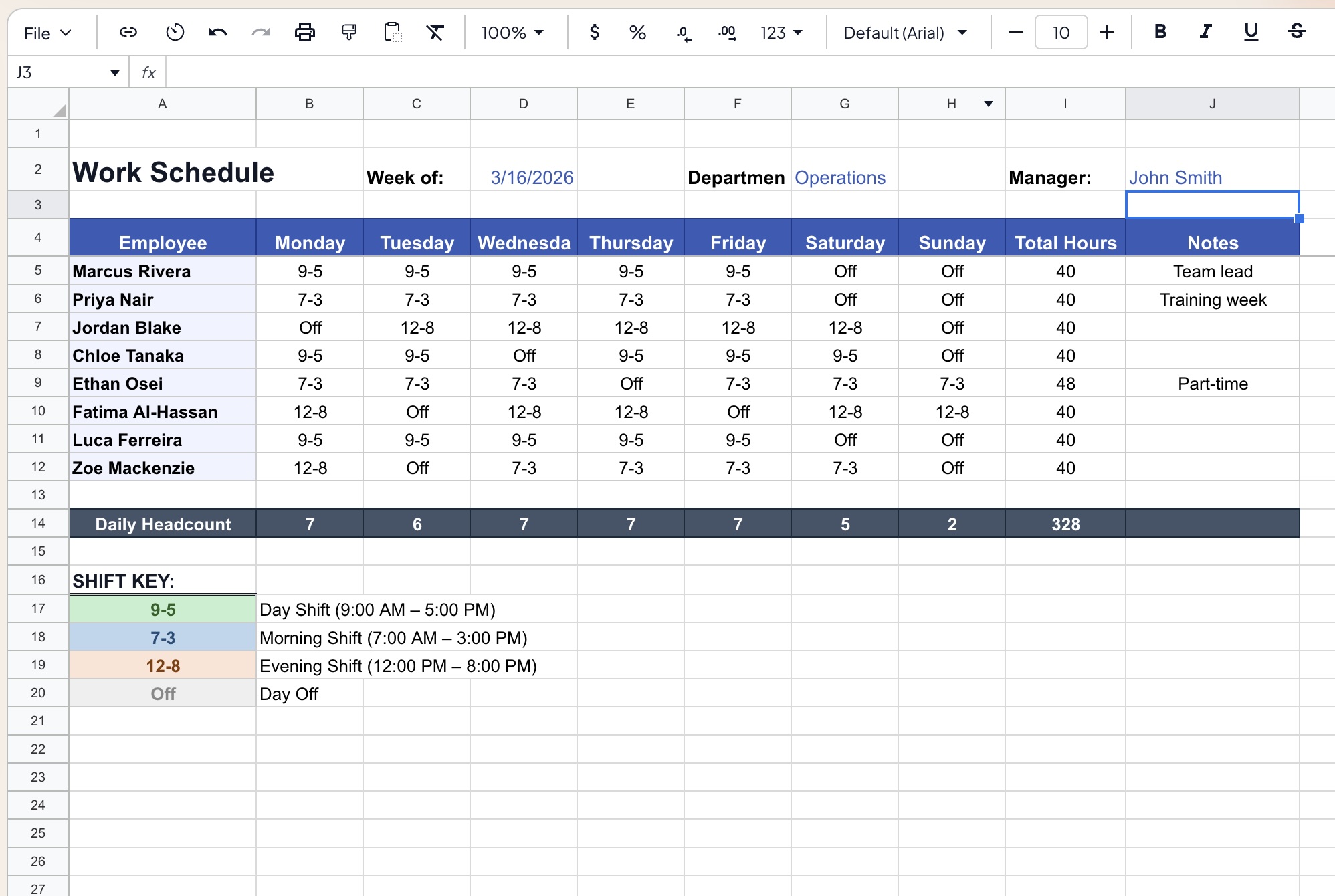
This Work Schedule Template provides managers with a structured, at-a-glance weekly roster for their entire team. Assign shifts, track daily headcount, and monitor total weekly hours per employee — all in a single, print-ready sheet. Color-coded shift labels make the schedule easy to read at a glance for both managers and staff.
Suitable for retail, hospitality, operations, healthcare, and any shift-based team environment. Works equally well for office-hours scheduling and flexible hybrid work arrangements.
Template Structure
| Section | Description |
|---|---|
Header | Week, department, and manager details |
Roster Grid | Employee × Day shift assignment matrix |
Daily Headcount | Auto-counted staff on shift per day |
Total Hours | Weekly hours per employee, auto-calculated |
Shift Key | Color-coded legend of shift types and times |
Notes | Per-employee annotations (role, status, exceptions) |
Header Panel
Filled in once per week:
| Field | Example | Description |
|---|---|---|
| Week Of | 3/16/2026 | Start date of the scheduled week |
| Department | Operations | Team or business unit being scheduled |
| Manager | John Smith | Roster owner and approver |
Roster Grid
One row per employee, one column per day of the week:
| Column | Description |
|---|---|
| Employee | Full name of the team member |
| Monday – Sunday | Shift code entered per day (e.g. 9-5, 7-3, 12-8, Off) |
| Total Hours | Auto-calculated weekly hours based on shift assignments |
| Notes | Free-text field for role flags, exceptions, or status |
Shift codes are entered as short labels (e.g. 9-5, 7-3, 12-8, Off) that map to the Shift Key legend. Conditional formatting automatically applies the correct color to each cell based on the entered code.
Shift Key
A color-coded reference legend displayed below the roster:
| Code | Shift Name | Hours | Color |
|---|---|---|---|
9-5 | Day Shift | 9:00 AM – 5:00 PM (8 hrs) | 🟢 Green |
7-3 | Morning Shift | 7:00 AM – 3:00 PM (8 hrs) | 🔵 Blue |
12-8 | Evening Shift | 12:00 PM – 8:00 PM (8 hrs) | 🟠 Orange |
Off | Day Off | — | ⬜ Grey |
Additional shift types can be added by extending the Shift Key table and updating the conditional formatting rules accordingly.
Daily Headcount Row
A summary row at the bottom of the roster grid that auto-counts the number of employees on shift (i.e. not marked Off) for each day of the week:
| Output | Description |
|---|---|
| Mon – Sun headcount | COUNTIF of non-Off entries per column |
| Total (rightmost) | Sum of all daily headcounts across the week |
Useful for quickly identifying understaffed days, minimum coverage breaches, or weekend skeleton crew levels.
Total Hours Calculation
Each employee's weekly total is auto-calculated based on their shift assignments. Shift durations are defined in the Shift Key and mapped via a lookup:
- Each day worked contributes the corresponding shift hours
Offdays contribute 0 hours- Weekly total is the sum across Monday–Sunday
- Conditional formatting flags totals above the standard threshold (e.g. >40 hrs) for overtime review
Notes Column
A free-text field per employee for manager annotations:
| Example Entry | Use Case |
|---|---|
| Team lead | Role or seniority flag |
| Training week | Temporary schedule modification |
| Part-time | Reduced hours employment type |
| On leave Fri | Single-day exception within the week |
| Probation | HR or onboarding status |
Formatting Conventions
- 🟢 Green fill — Day Shift (9-5) cells
- 🔵 Blue fill — Morning Shift (7-3) cells
- 🟠 Orange fill — Evening Shift (12-8) cells
- ⬜ Grey fill / italic — Off / Rest Day cells
- Dark navy header row — column labels (Employee, Mon–Sun, Total Hours, Notes)
- Dark grey footer row — Daily Headcount summary
- Bold employee names — for quick scanning down the roster
- Print area set to fit one full week on A4 landscape
How to Use
- Enter the Week Of date, Department, and Manager name in the header
- Add employee names in the Employee column (add rows as needed)
- Enter shift codes (
9-5,7-3,12-8, orOff) for each employee per day - Conditional formatting applies shift colors automatically
- Review Daily Headcount row to verify minimum coverage per day
- Check Total Hours column for overtime or underhour flags
- Add any relevant notes per employee in the Notes column
- Save as
Schedule_[Dept]_[WeekOf].xlsxand share with the team
Customization
| Customization | How To |
|---|---|
| Add a new shift type | Extend the Shift Key table, add a new conditional format rule |
| Add more employees | Insert rows above the Daily Headcount row |
| Change work week (Mon–Sat only) | Hide the Sunday column |
| Multi-department view | Duplicate the sheet tab per department |
| Public holiday override | Manually mark as PH and add a PH entry to the Shift Key |
Requirements
- Microsoft Excel 2016+ or Excel 365 (Windows or Mac)
- Conditional formatting required for automatic shift color-coding
- Compatible with Google Sheets (conditional formatting rules may need re-applying)
- No macros required — fully formula-based
Limitations & Caveats
This template manages one week and one department per sheet. It is a scheduling tool, not a payroll or HR system.
- Does not calculate pay — connect to a timesheet template for gross pay computation
- Leave balances and accruals are not tracked
- No conflict detection for double-booked employees across departments
- For teams larger than 20–25 employees, consider splitting by sub-team or using a dedicated workforce management tool
Changelog
| Version | Date | Notes |
|---|---|---|
| v1.0 | Feb 2024 | Initial release — roster grid and shift key |
| v1.5 | Aug 2024 | Daily headcount row, total hours calculation, notes column |
| v2.0 | Apr 2026 | Color-coded conditional formatting, multi-shift key, print layout |